Connecting to SBU Computer Science Palo Alto Network GlobalProtect Gateway from MacOS
-
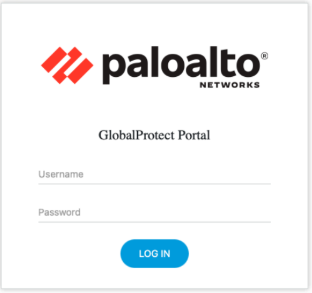
Log into the GlobalProtect portal. Go to https://vpn.cs.stonybrook.edu. On the portal login page, login using your CS Department username and password.
-
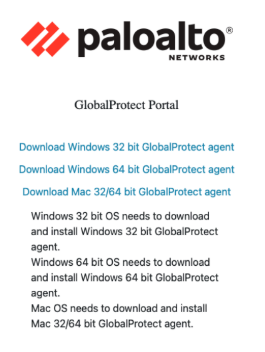
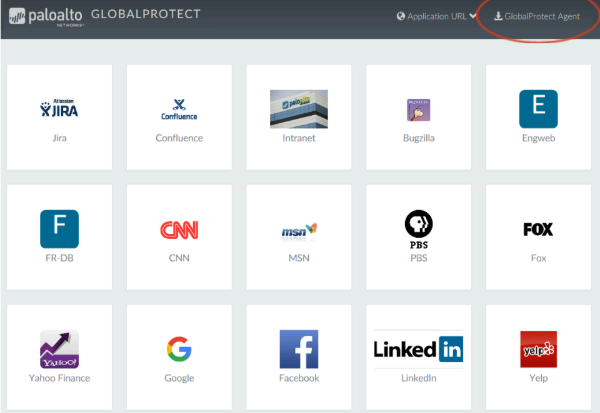
Navigate to the app download page. In most instances the app download page appears immediately after you log into the portal. If the application page opens after you login to the portal (instead of the app download page) select GlobalProtect Agent to open the download page.
-
Click on Download Mac 32/64 bit GlobalProtect Agent.
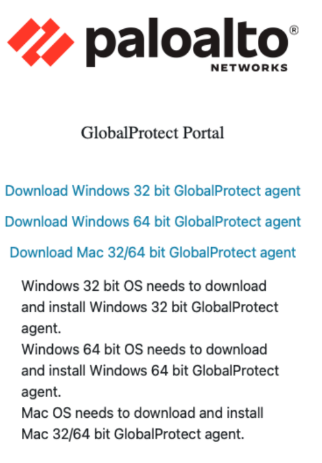
- Run and complete the downloaded installer GlobalProtect.pkg.
-
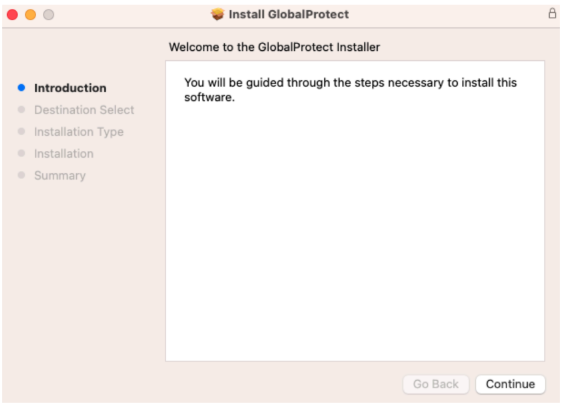
Click Continue.
-
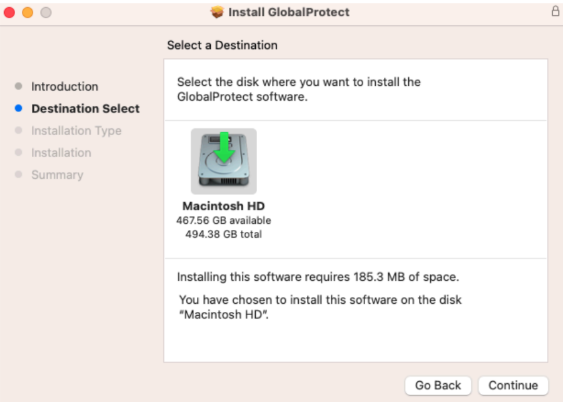
On the Destination Select screen, select the installation folder for the GlobalProtect app, and then click Continue.
-
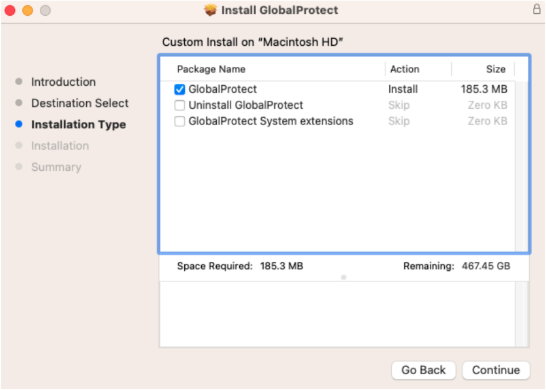
On the Installation Type screen, select the GlobalProtect installation package check box and click Continue.
-
Click Install.
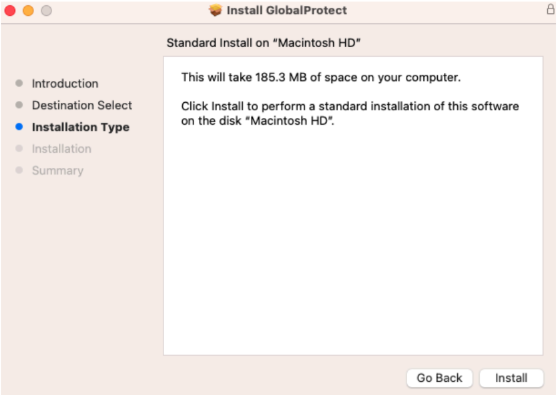
- When prompted, enter your Username and Password and then click Install Software to begin the installation.
- After installation is complete, close the installer.
-
- Once installed, click on the globe icon on the menu bar to open GlobalProtect.
-
Click on Get Started.

-
Type in vpn.cs.stonybrook.edu in prompted window and click Connect.
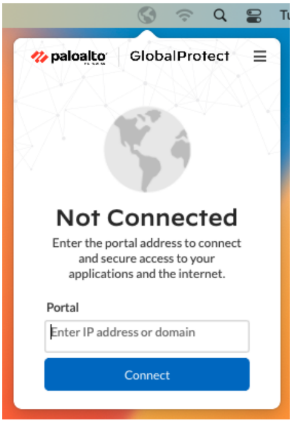
-
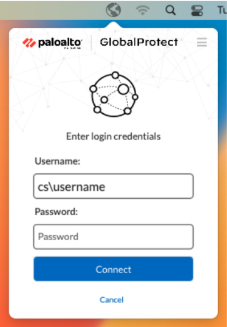
Enter your CS Department Username and Password and click Connect. You must type cs\ before your CS username as below.
-
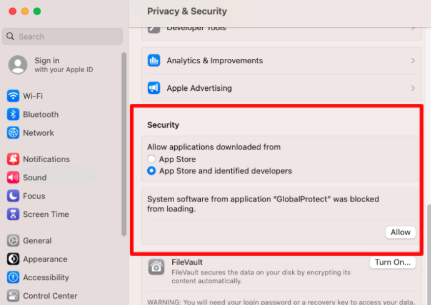
If you enabled the GlobalProtect System Extensions, select Open Security Preferences to enable the system extensions in MacOS that were blocked from loading from the following System Extension Blocked notification.
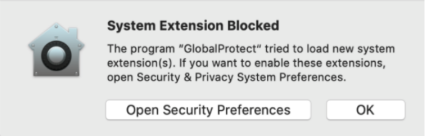
In System Settings, go to Privacy and Security and scroll down to Security and select App Store and identified developers and click Allow on the System software from application "GlobalProtect" was blocked from loading.
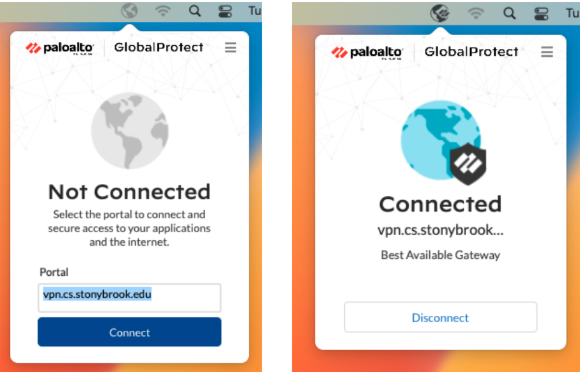
Once connected the globe icon on the menu bar will be accented with a logo on top of it. To disconnect, click on Disconnect.
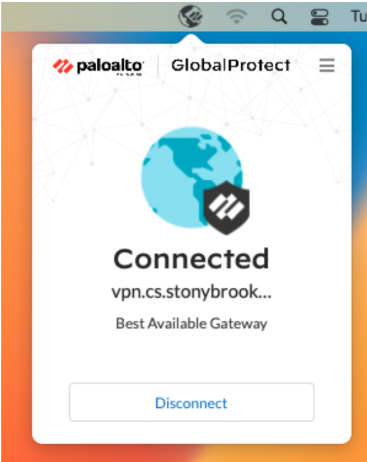
After connecting for the first time you can now open up GlobalConnect on the menu bar and click on Connect to establish connection with the VPN and Disconnect to disconnect from the VPN.